9.3 Site Mesh VPN
Site Mesh VPN connects every NTPSense gateway across your organization's locations — headquarters and every branch office — directly to one another, automatically, without manually configuring a site-to-site tunnel for every pair of sites. Add a third location and it's automatically reachable from the first two as well, with no additional tunnels to configure.
This is built on Tailscale, using a self-hosted control server (Headscale) rather than Tailscale's commercial cloud service — your mesh network's routing information stays entirely within infrastructure you control, not a third-party's cloud.
When to Use This
- You have more than one NTPSense gateway (e.g. HQ plus one or more branch offices) and want them to reach each other's networks directly.
- You want new sites to join the mesh with minimal configuration — no manual IPsec tunnel setup per pair of sites.
If you only have a single gateway and need remote access for individual staff/devices, use WireGuard or OpenVPN instead — Site Mesh VPN is for connecting gateways to each other, not individual end-user devices.
Installing on Headquarter (HQ) NTPsense Pro Gateway
- Go to Package Manager, find Headscale, and click Install — on HQ gateway that should be self-hosted control server.
- Wait for the live console to confirm success on each one.
- VPN > Site Mesh now appears in the sidebar on each gateway.
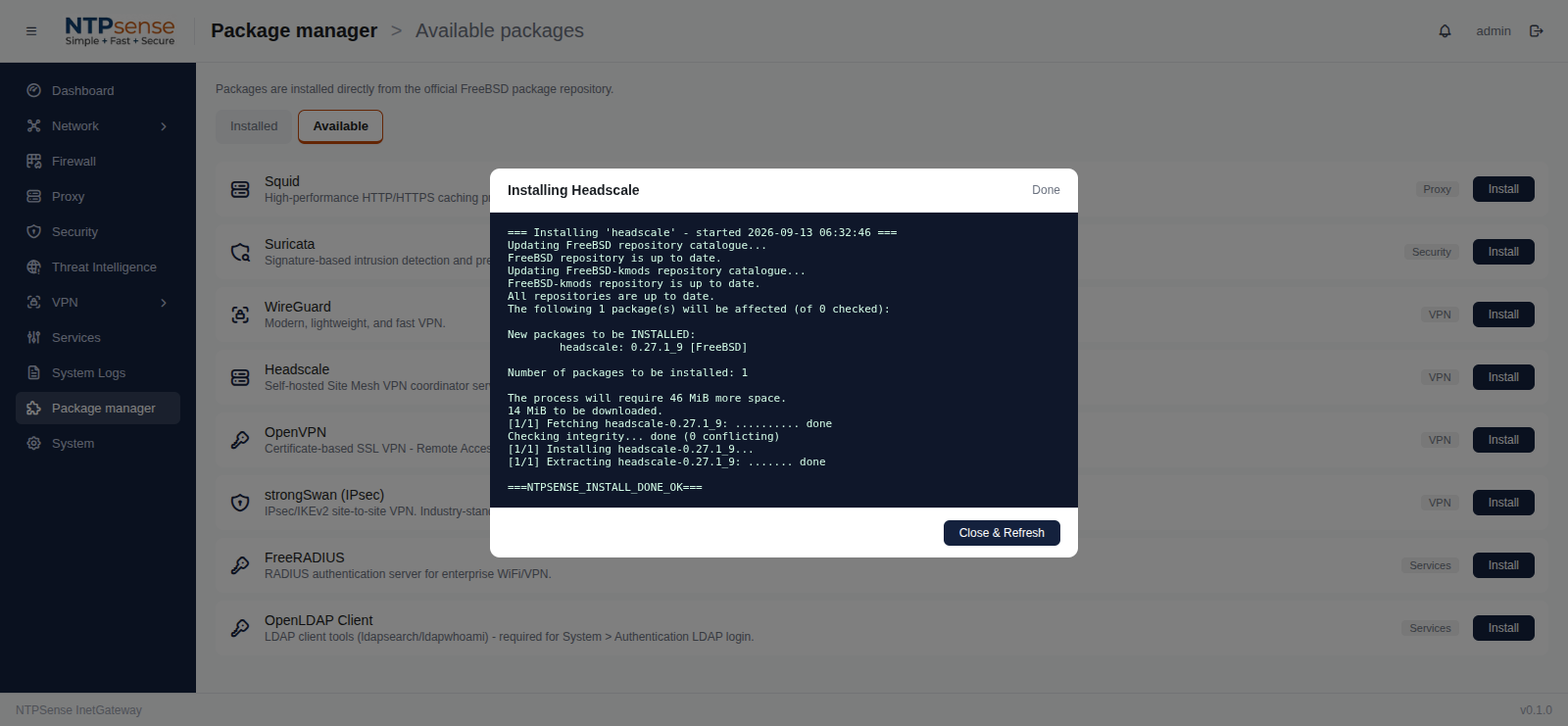 Headscale Installation
Installing on Branch NTPsense Pro Gateway
- Go to Package Manager, find Tailscale, and click Install — on every gateway that should join the mesh (HQ and each branch).
- Wait for the live console to confirm success on each one.
- VPN > Site Mesh now appears in the sidebar on each gateway.
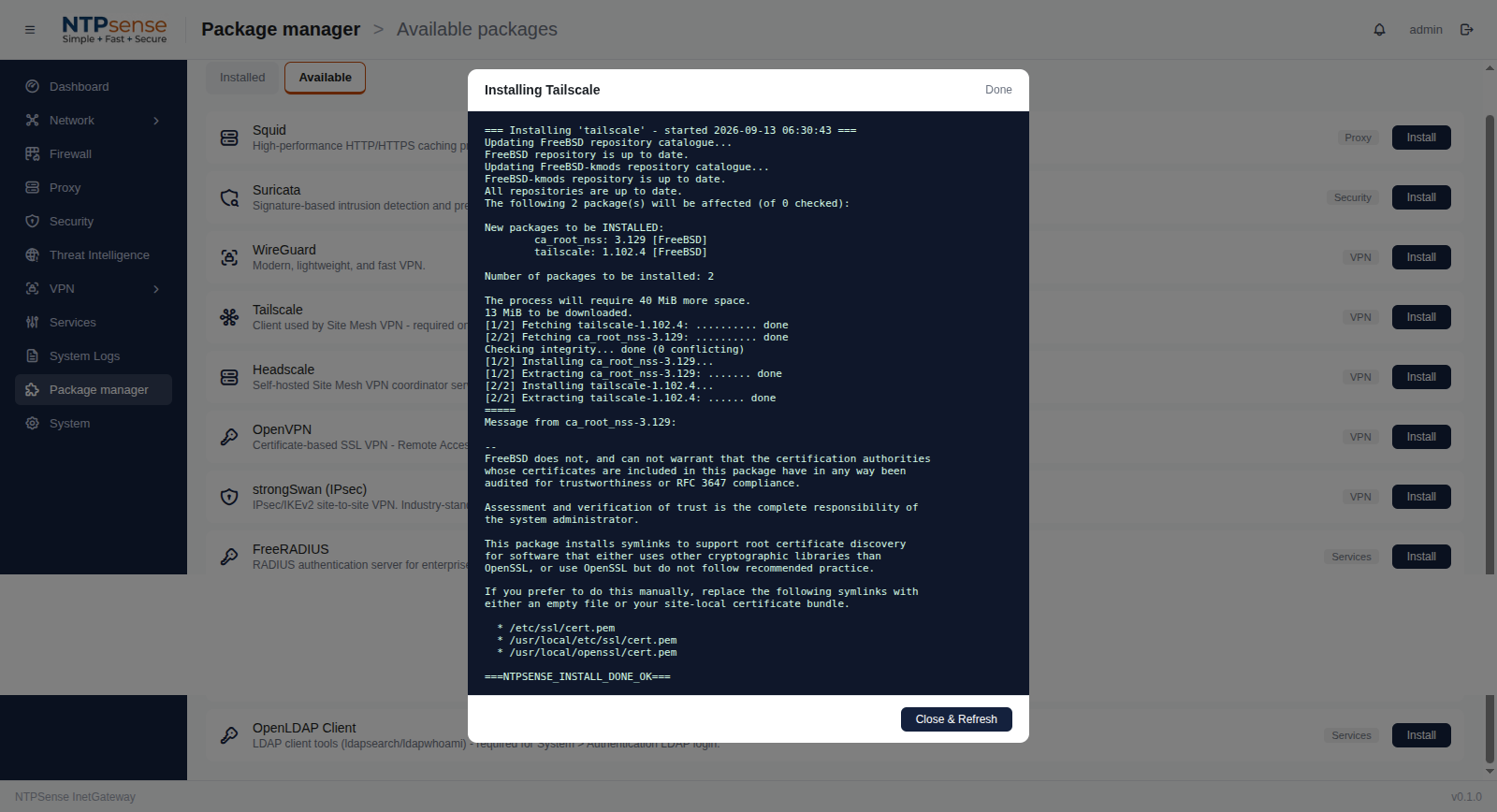 Tailscale Installation
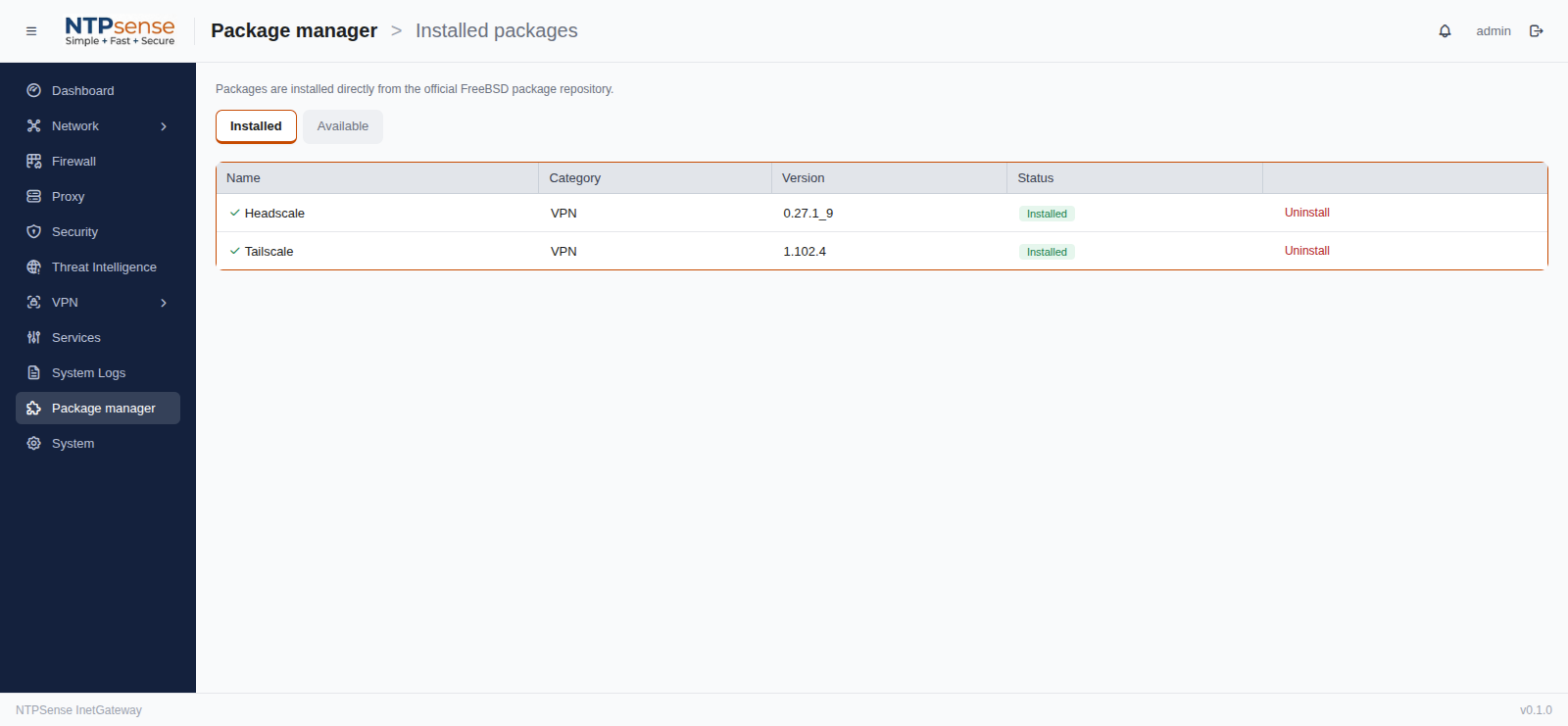 Headscale and Tailscale Installation
Enable Headscale on a HQ Gateway
- Open VPN > Site Mesh > General Tab Choose "Enable" on Server Status.
- Go to Branch Sites Tab then go to "Add Branch Site" at the bottom page.
- Give this a branch gateway a Node name — a label identifying this specific site (e.g.
branch-100) so it's identifiable to other sites in the mesh. - Click Generate Join Code.
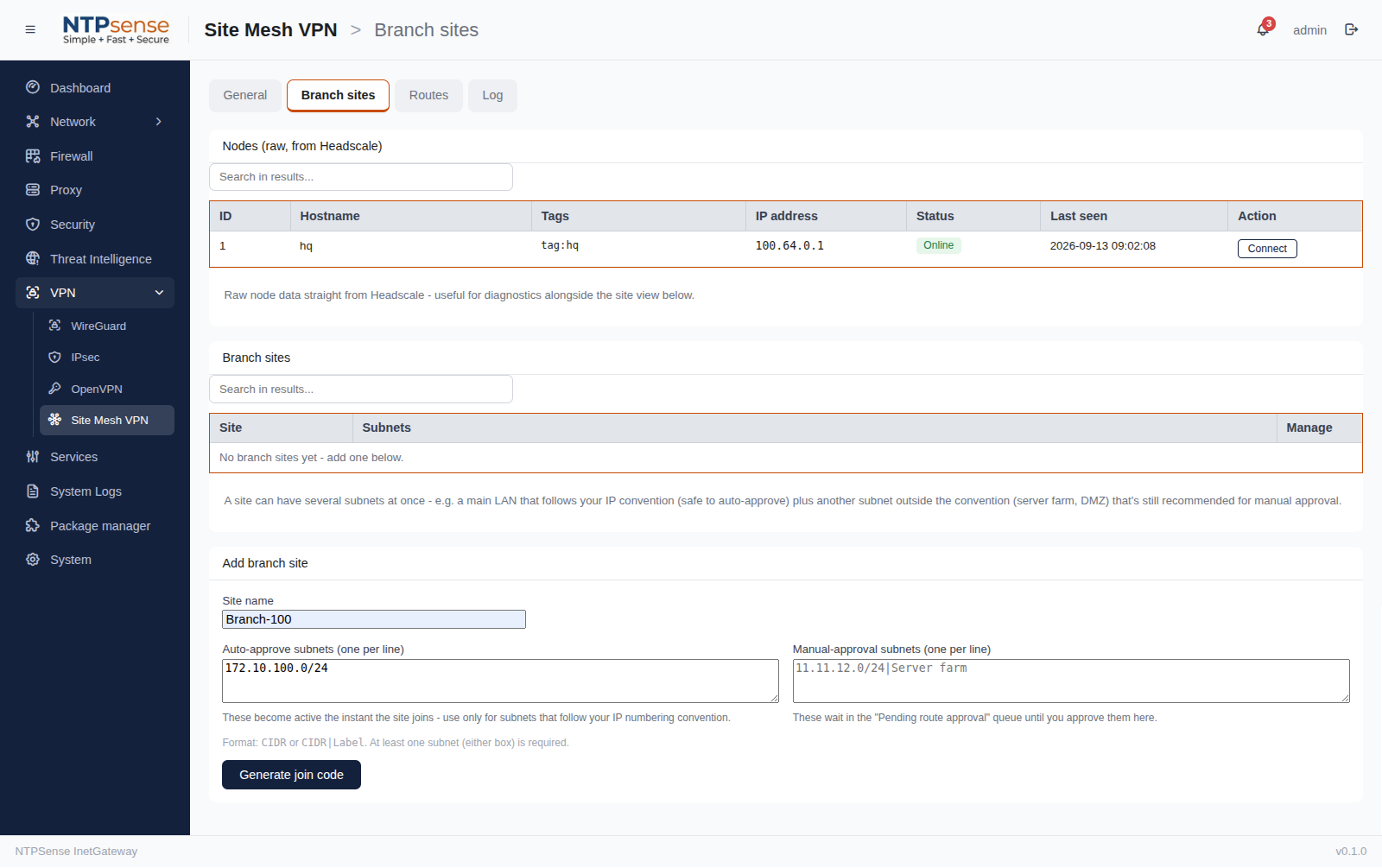 Setup Branch on Headscale Server
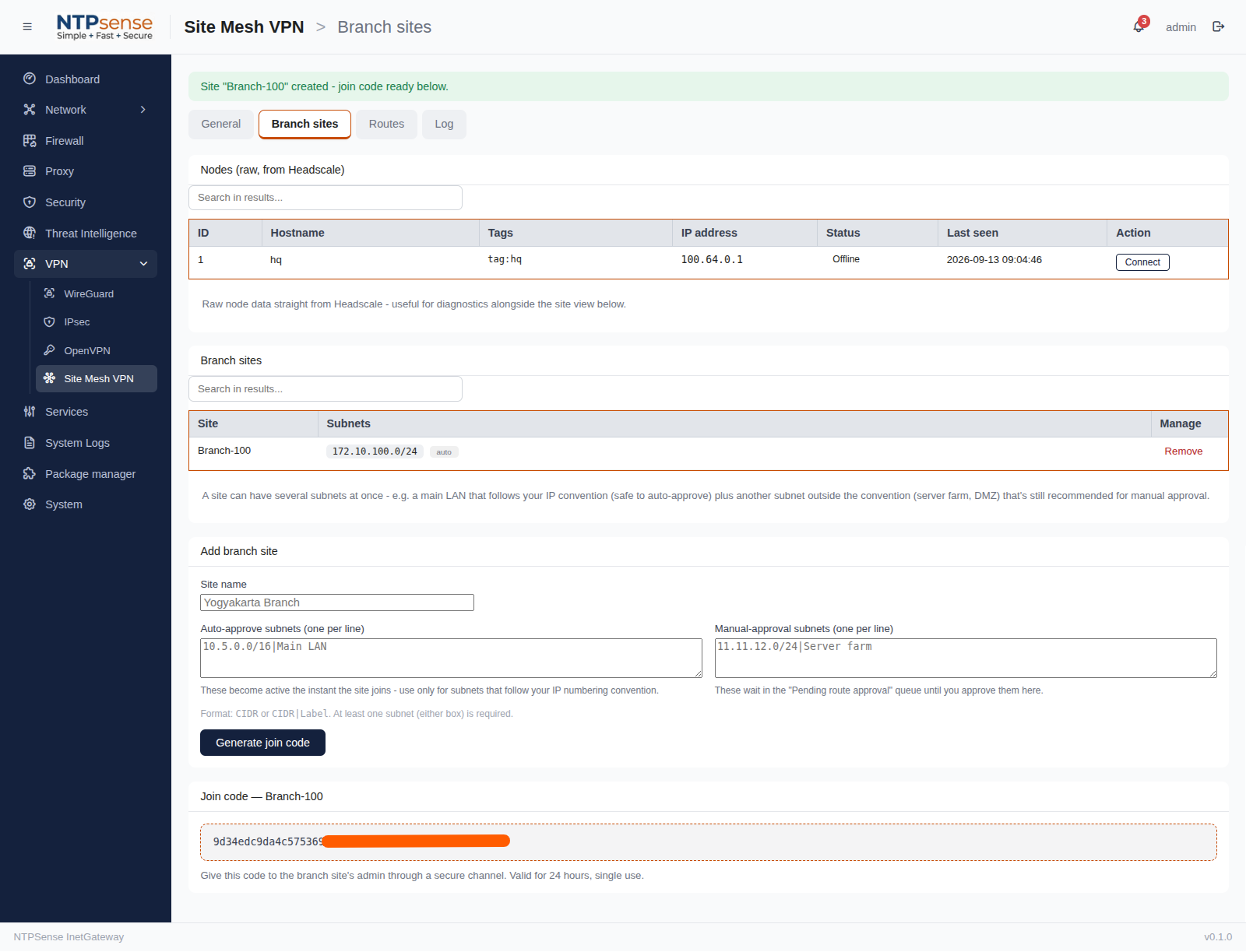 Branch - Generate Join Code
Repeat above steps on each branches gateway you want in the mesh.
Joining a Gateway to the Mesh
Repeat this on each gateway you want in the mesh:
- Open VPN > Site Mesh VPN > General Tab.
- Go to HQ login server address e.g. http://203.0.113.161:8080.
- Input Join code e.g. 9d34edc9da4**** that generated by HQ Gateway.
- Input Branch network segment Our subnet(s) to advertise e.g. 10.2.0.0/16, 11.11.11.0/24. More than one is fine, comma-separated - e.g. a main LAN plus a WLAN. HQ decides which ones get auto-approved vs need manual approval.
- Click button Join mesh
Once two or more gateways have joined, they should automatically be able to reach each other's LAN subnets.
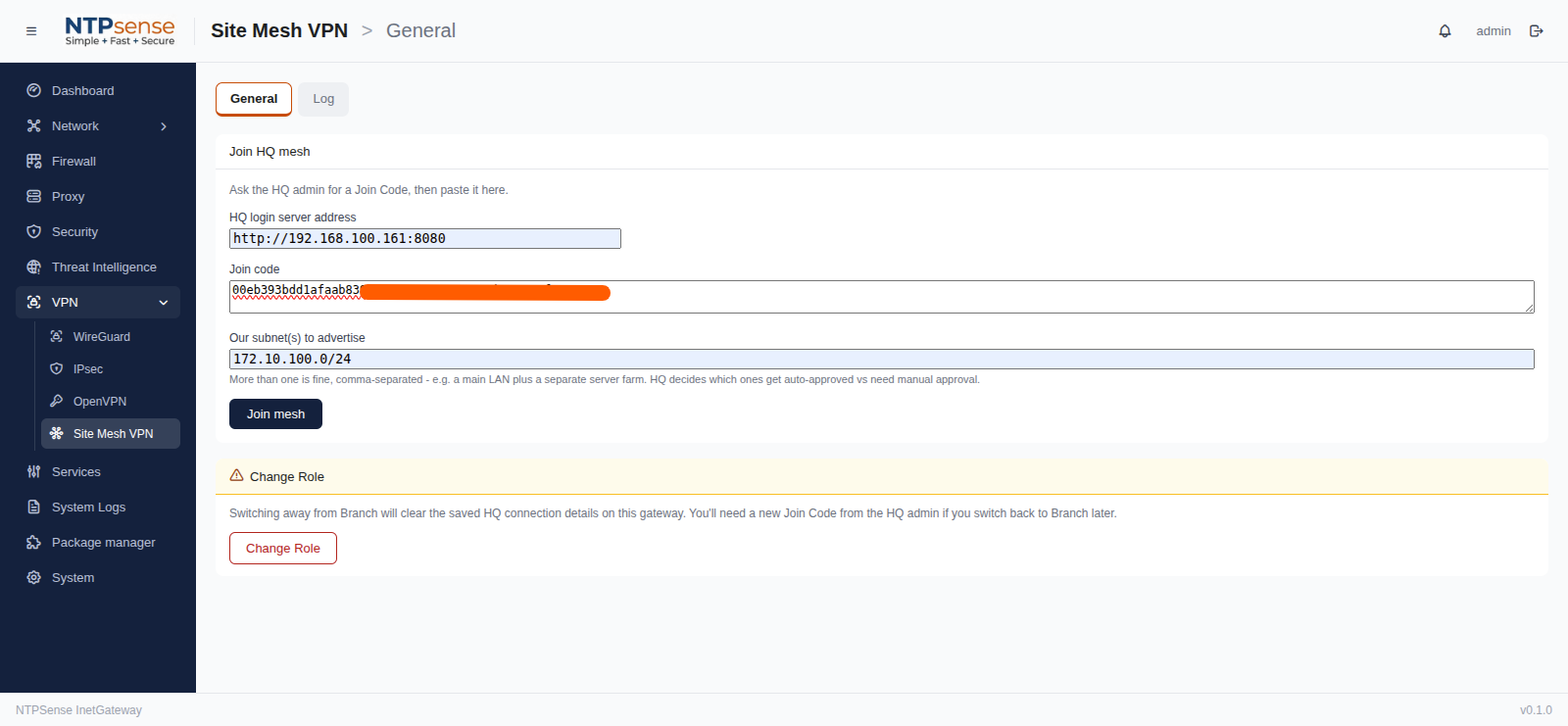 Setup Branch join to Mesh VPN
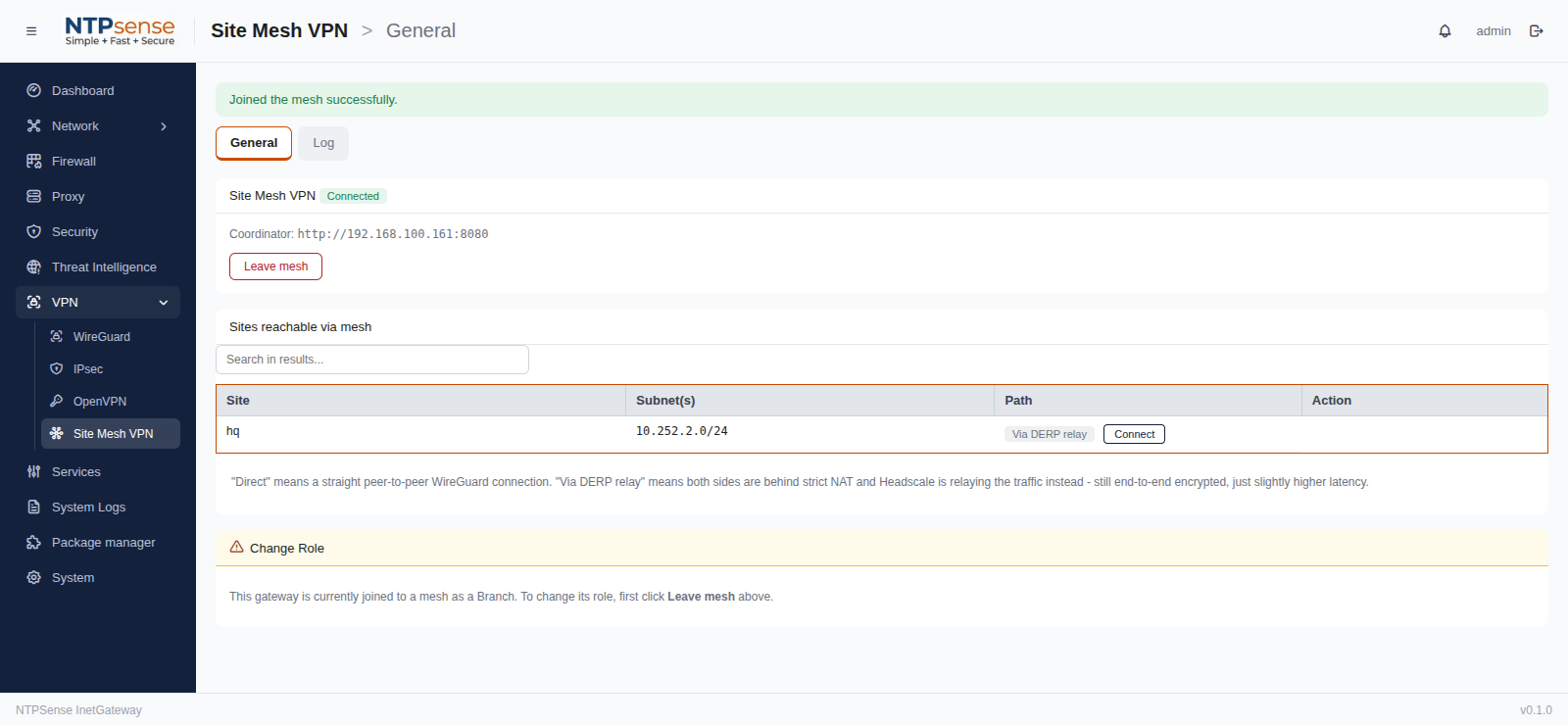 Successfully Branch join to Mesh VPN
Verifying Connectivity
Open VPN > Site Mesh > Branch Sites on HQ gateway — it lists every other node currently in the mesh, with:
Tabel Node of Mesh VPN
| Column | Meaning |
|---|---|
| Host name | The name you gave that gateway hostname. |
| IP address | The IP address tunnel of mesh VPN. |
| Status | Online / Offline. |
| Last Seen | Date and time last seen on mesh VPN. |
Tabel Branch Sites of Mesh VPN
| Column | Meaning |
|---|---|
| Sites | The label you gave that gateway when it joined. |
| Subnets | The private mesh address for that gateway (used for site-to-site routing). |
| Manage | Remove a side out of mesh VPN. |
To confirm two sites can genuinely reach each other, try pinging a device on the remote site's LAN from a device on the local LAN — this should succeed once both gateways show each other as Online.
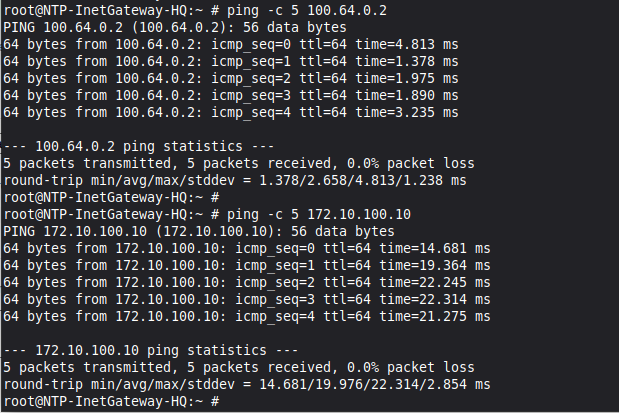
Ping HQ to Branch of Mesh VPN
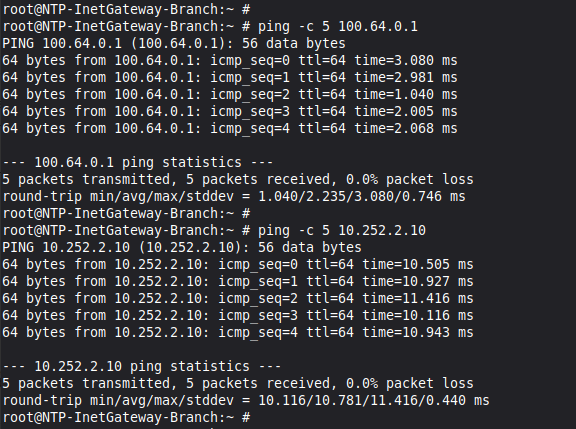
Ping Branch to HQ of Mesh VPN
Removing a Gateway from the Mesh
Open VPN > Site Mesh VPN on the gateway you want to remove and click Leave Mesh. This immediately stops that site from being reachable by the rest of the mesh; other sites' entries for it will show as Offline and eventually disappear.
Note
Because the control server (Headscale) is self-hosted rather than using Tailscale's commercial cloud, there is no per-device or per-node subscription cost for using Site Mesh VPN, regardless of how many gateways you connect.