9.4 IPsec
IPsec is the industry-standard protocol for site-to-site VPN tunnels, built on strongSwan using IKEv2. Use this when connecting NTPSense to a non-NTPSense firewall — a partner organization's network, another office running a different vendor's equipment, or a cloud provider's VPN gateway. NTPSense's IPsec implementation is interoperable with pfSense, FortiGate, Palo Alto, Cisco, and most other IKEv2-capable devices.
If you're connecting two or more NTPSense gateways to each other specifically, Site Mesh VPN is usually simpler — it doesn't require manually matching settings on both ends the way IPsec does.
Installing
- Go to Package Manager, find strongSwan (IPsec), and click Install.
- Wait for the live console to confirm success.
- VPN > IPsec now appears in the sidebar.
Information You'll Need Before Starting
Site-to-site IPsec requires both ends to agree on several settings. Before configuring, get the following from whoever administers the other end of the tunnel:
- The other side's public IP address (or hostname)
- The remote network (subnet) that should be reachable through the tunnel
- A pre-shared key (PSK) — a shared secret both sides will use, agreed on in advance through a secure channel (not email)
- The encryption/authentication proposal the other side supports (e.g. AES-256, SHA-256, DH Group 14) — if unsure, NTPSense's defaults are IKEv2 with AES-256-GCM, which most modern firewalls support
Creating a Tunnel
Open VPN > IPsec and click Add Tunnel.
- Name — a label for this tunnel (e.g.
partner-jakarta). - Remote gateway — the other side's public IP address or hostname.
- Local network — your own LAN subnet that should be reachable through the tunnel.
- Remote network — the subnet on the other side that should be reachable from your network.
- Authentication — select Pre-Shared Key and enter the PSK agreed with the other administrator.
- Encryption proposal — leave as default (AES-256-GCM) unless the other side specifically requires something different; if so, adjust to match exactly — a mismatch here is the most common reason a tunnel fails to come up.
- Click Save.
Setup on Headquarter (HQ)
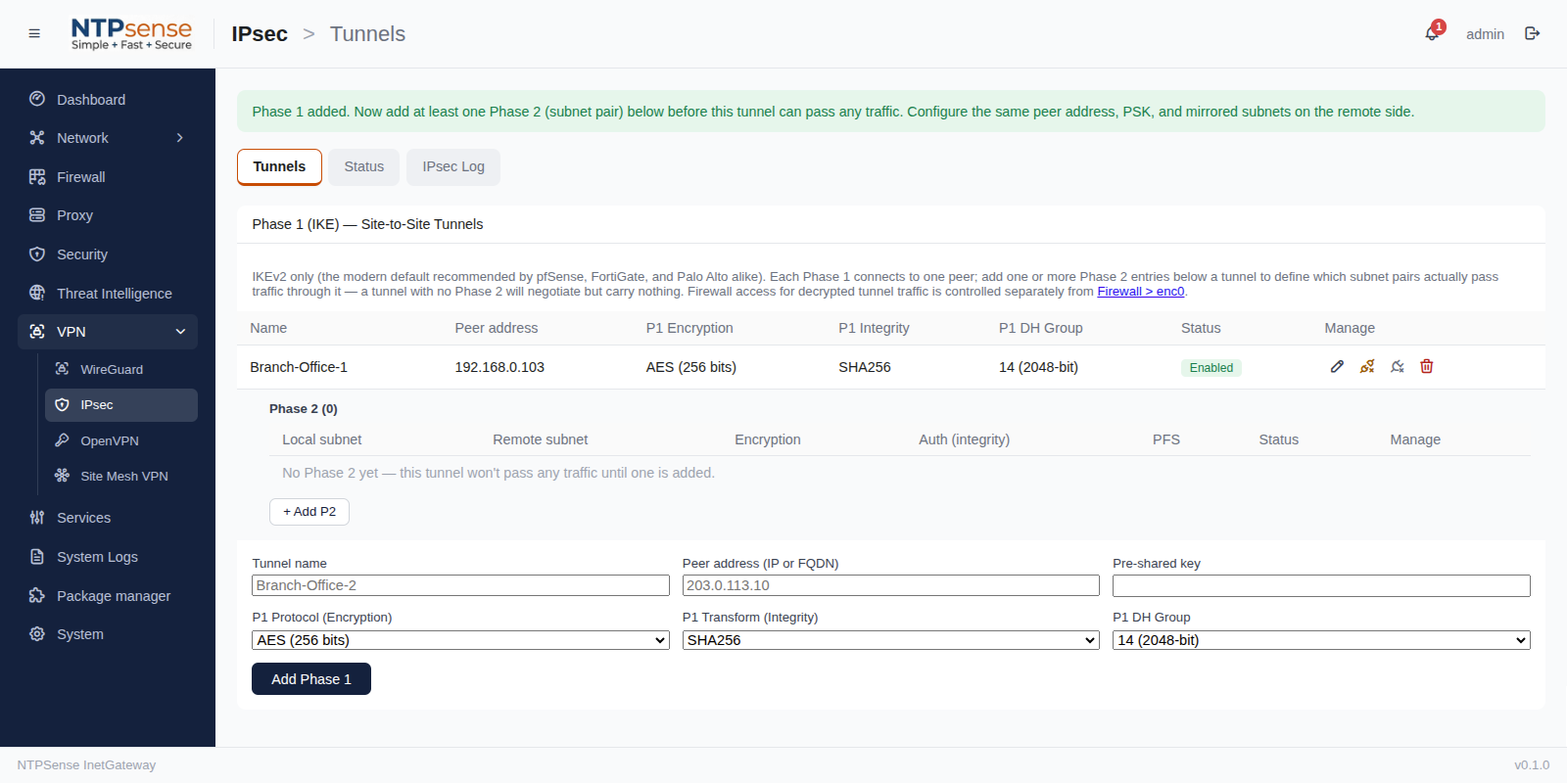 Creating a Tunnel - HQ Phase1
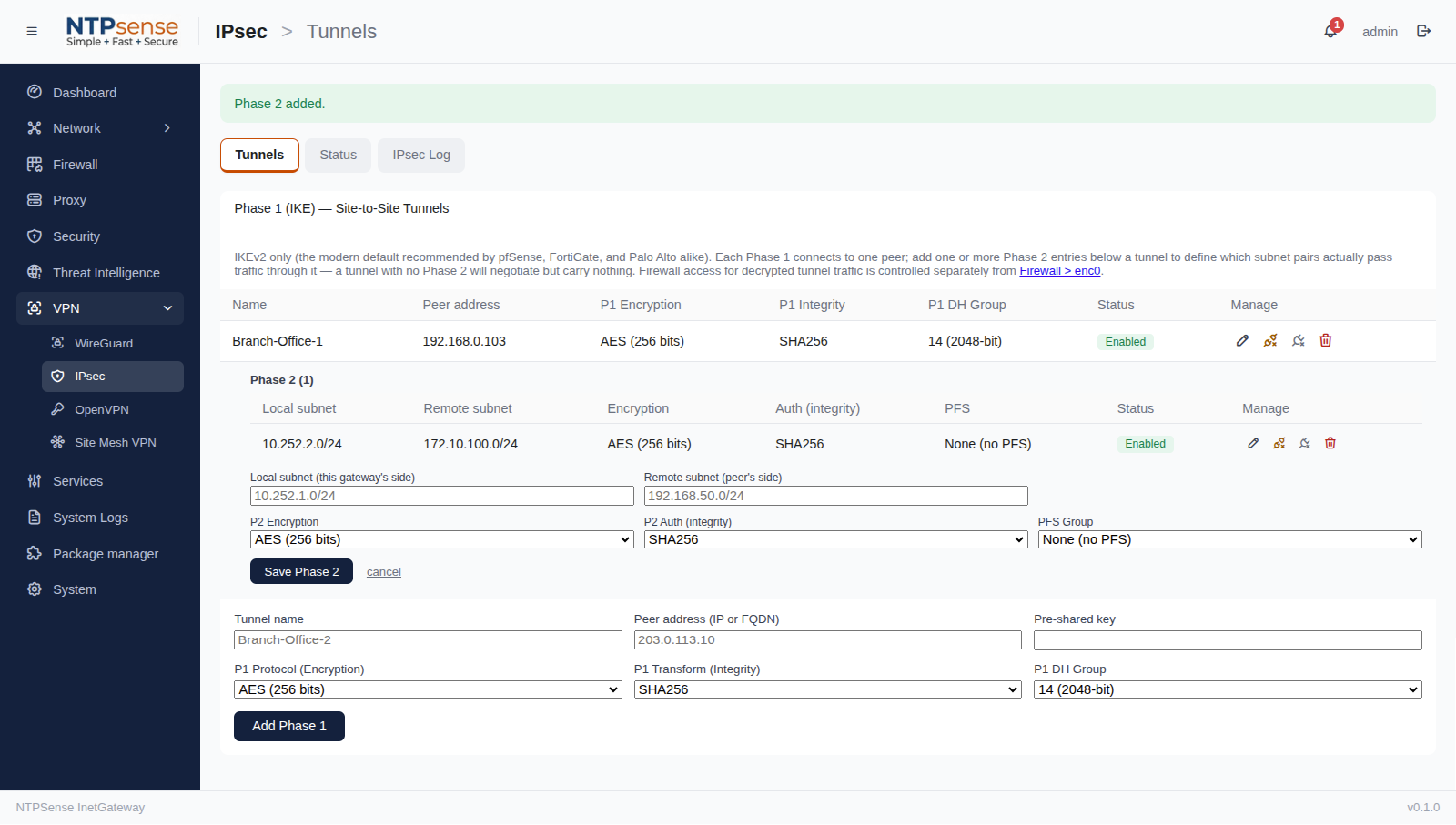 Creating a Tunnel - HQ Phase2
Setup on Branch-01
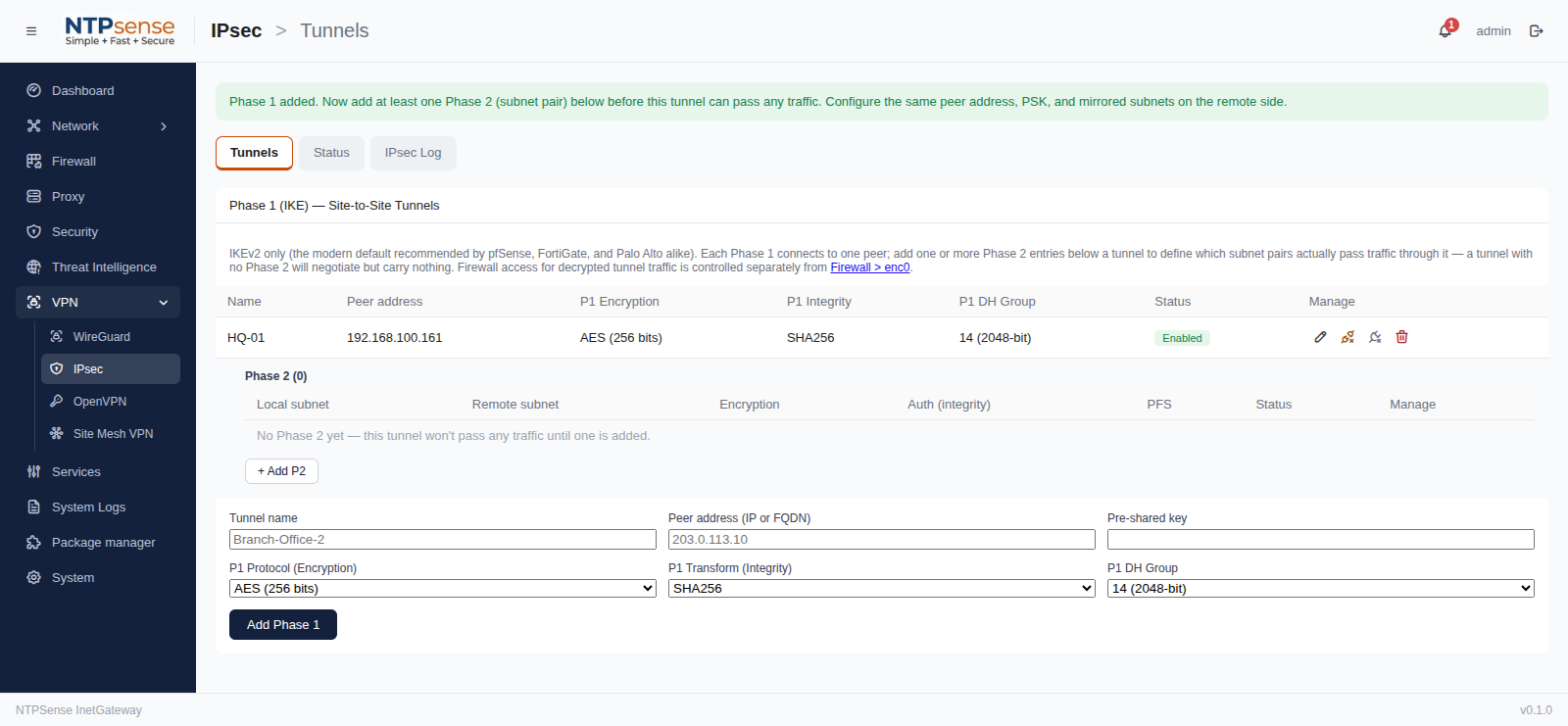 Creating a Tunnel - Branch Phase1
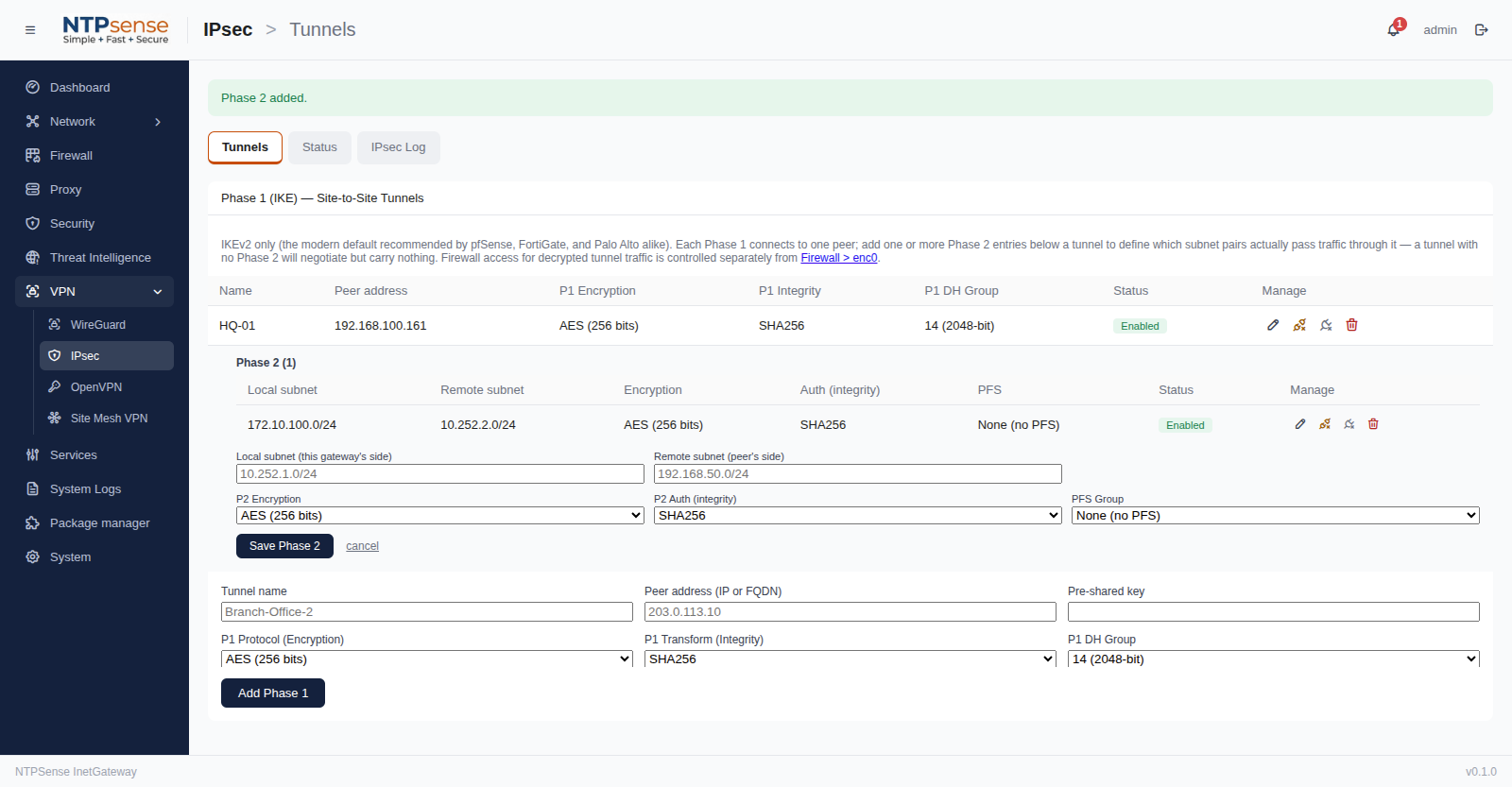 Creating a Tunnel - Branch Phase2
Bringing the Tunnel Up
New tunnels connect automatically once both sides are configured and traffic tries to cross them. To manually trigger a connection attempt (useful for testing), go to VPN > IPsec, find your tunnel, and click Connect.
Checking Tunnel Status
VPN > IPsec lists every configured tunnel with its current state:
| Status | Meaning |
|---|---|
| Established | The tunnel is up; traffic can pass. |
| Connecting | A connection attempt is in progress. |
| Down | Not connected — check the settings against the other side, or click Connect to retry. |
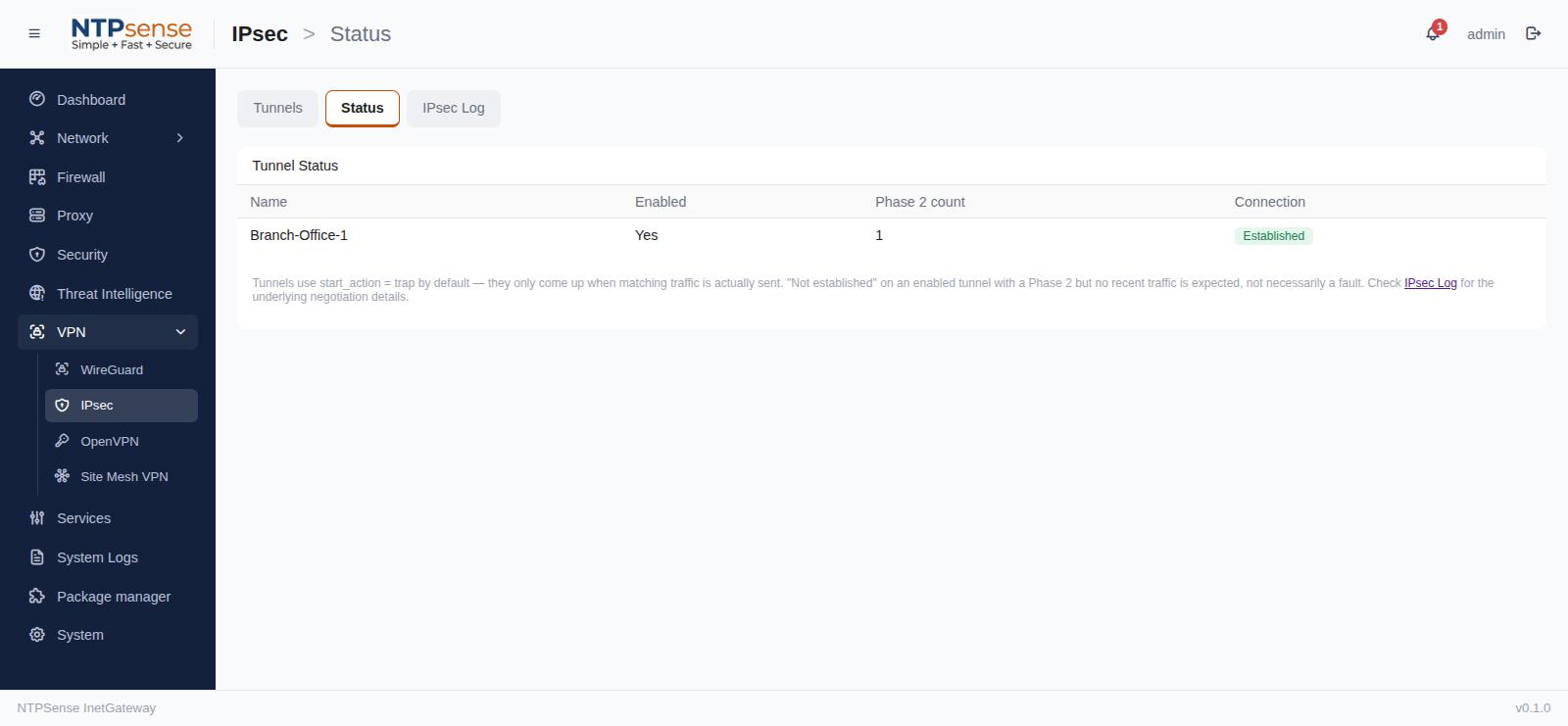 Tunnel Status - Headquarter (HQ)
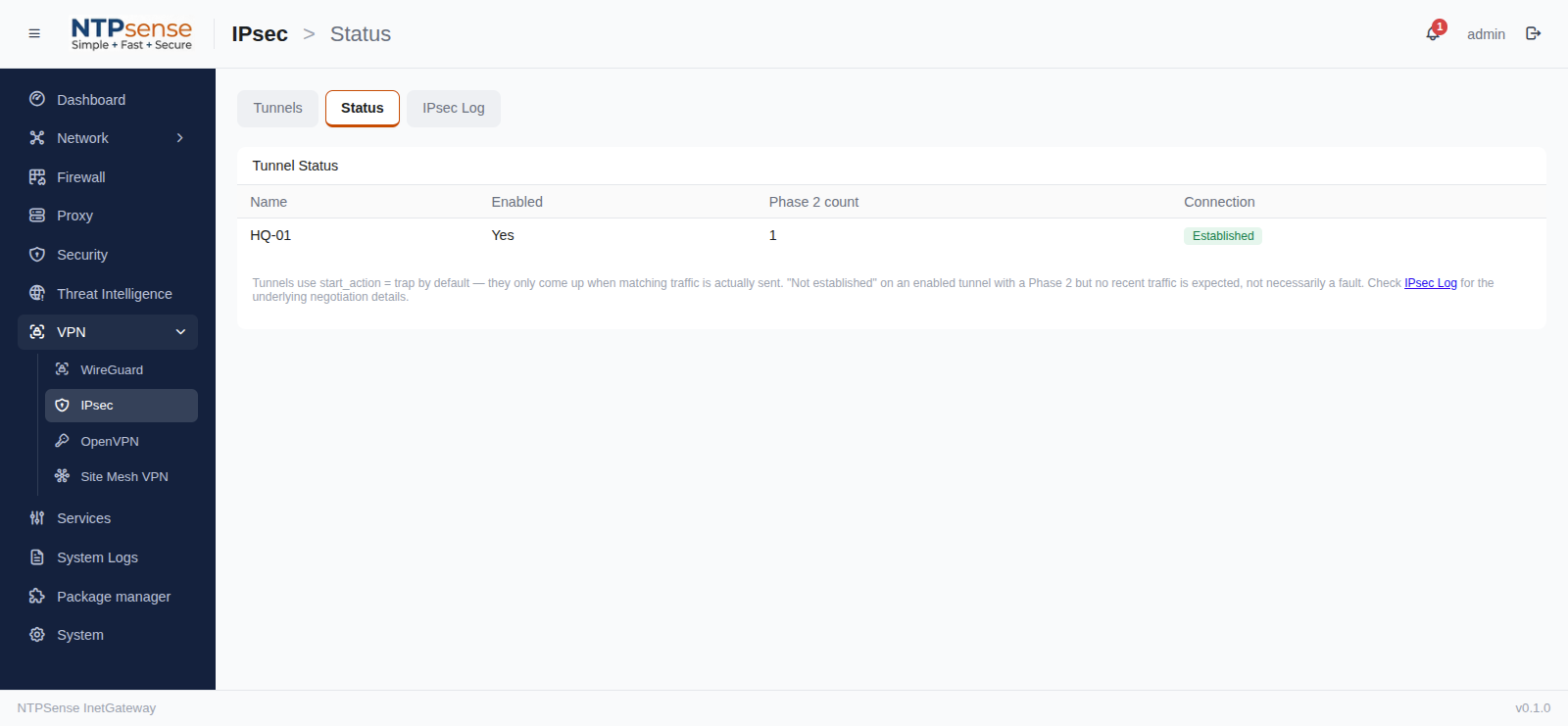 Tunnel Status - Branch
Verify Tunnel Connectivity
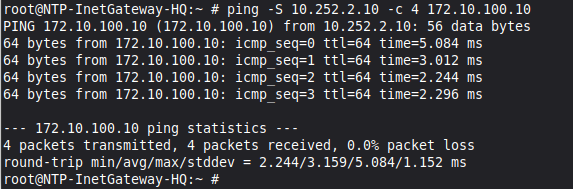
Ping to Branch LAN segment
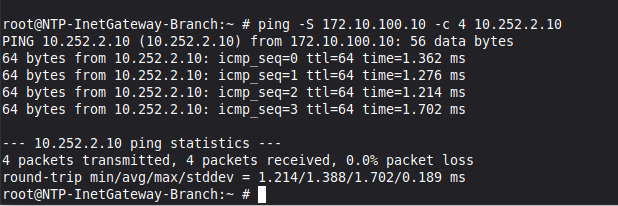
Ping to HQ LAN segment
Troubleshooting a Tunnel That Won't Come Up
The most common causes, in order of likelihood:
- Pre-shared key mismatch — even a single character difference will silently prevent the tunnel from establishing. Reconfirm the PSK with the other administrator.
- Encryption proposal mismatch — both sides must agree on the exact same algorithms. Check the other side's configuration and match it precisely.
- Firewall blocking UDP 500/4500 — IKEv2 needs these ports open between the two public IPs; check with the other administrator that nothing upstream is blocking them.
- Wrong remote/local network — double-check the subnets entered match what's genuinely on each side; a typo here means the tunnel might establish but no traffic actually routes through it.
For more detail on a specific failure, check System Logs > VPN, which shows the raw IPsec negotiation log — most failures state the exact reason (e.g. "NO_PROPOSAL_CHOSEN" for an encryption mismatch) directly in the log.