5. DHCP
5.1 Overview
NTPSense CE uses Kea DHCP (the modern successor to ISC DHCP) to assign IP addresses automatically. Configuration lives on the Network page, alongside interface settings.
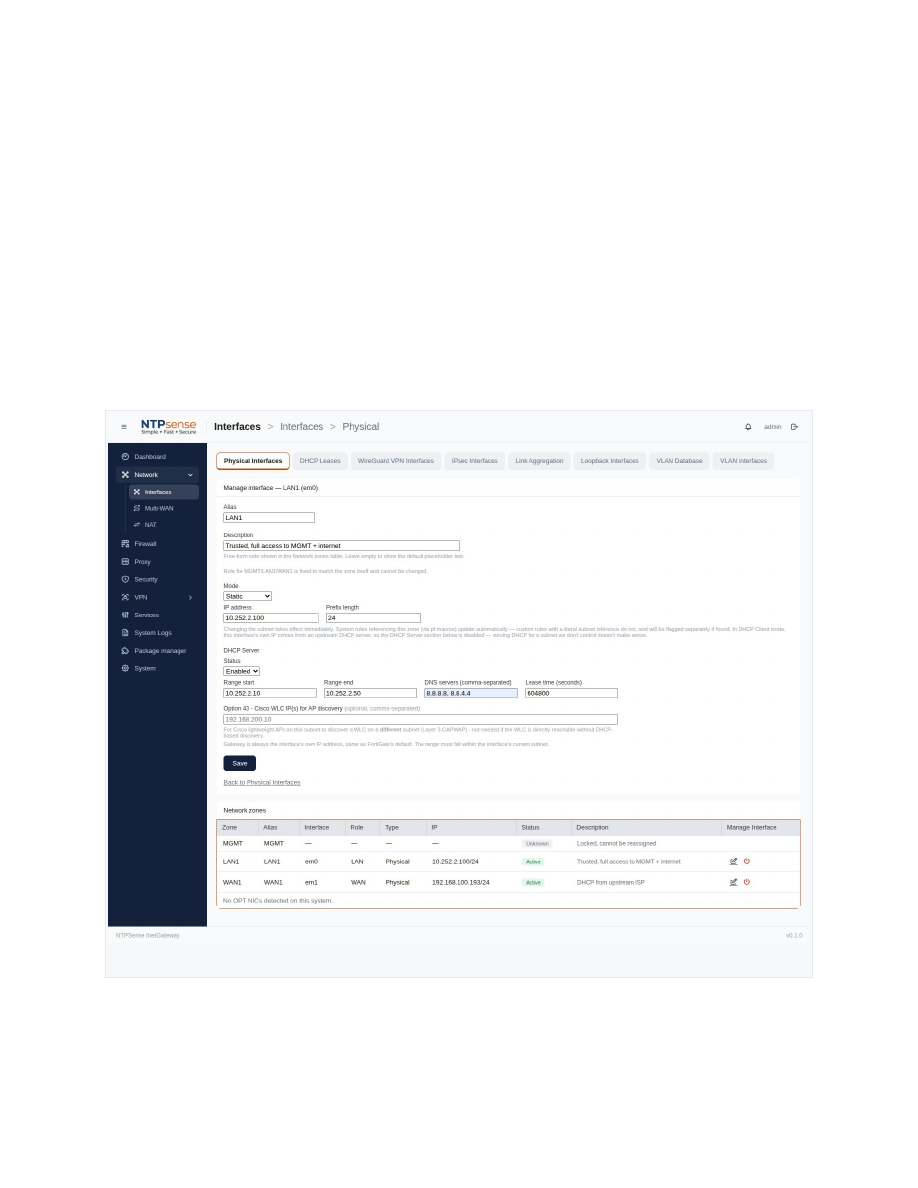 DHCP scope configuration
5.2 Configuring a DHCP Scope
- Select the interface you want to serve DHCP on (typically LAN1).
- Enable DHCP and set the address range.
- Set the DNS server(s) to hand out (leave blank to use the gateway itself).
- Save.
5.3 DHCP Leases
The DHCP Leases tab shows every device currently holding an address: IP, MAC, hostname, lease start, and expiry — read live from Kea's own database.
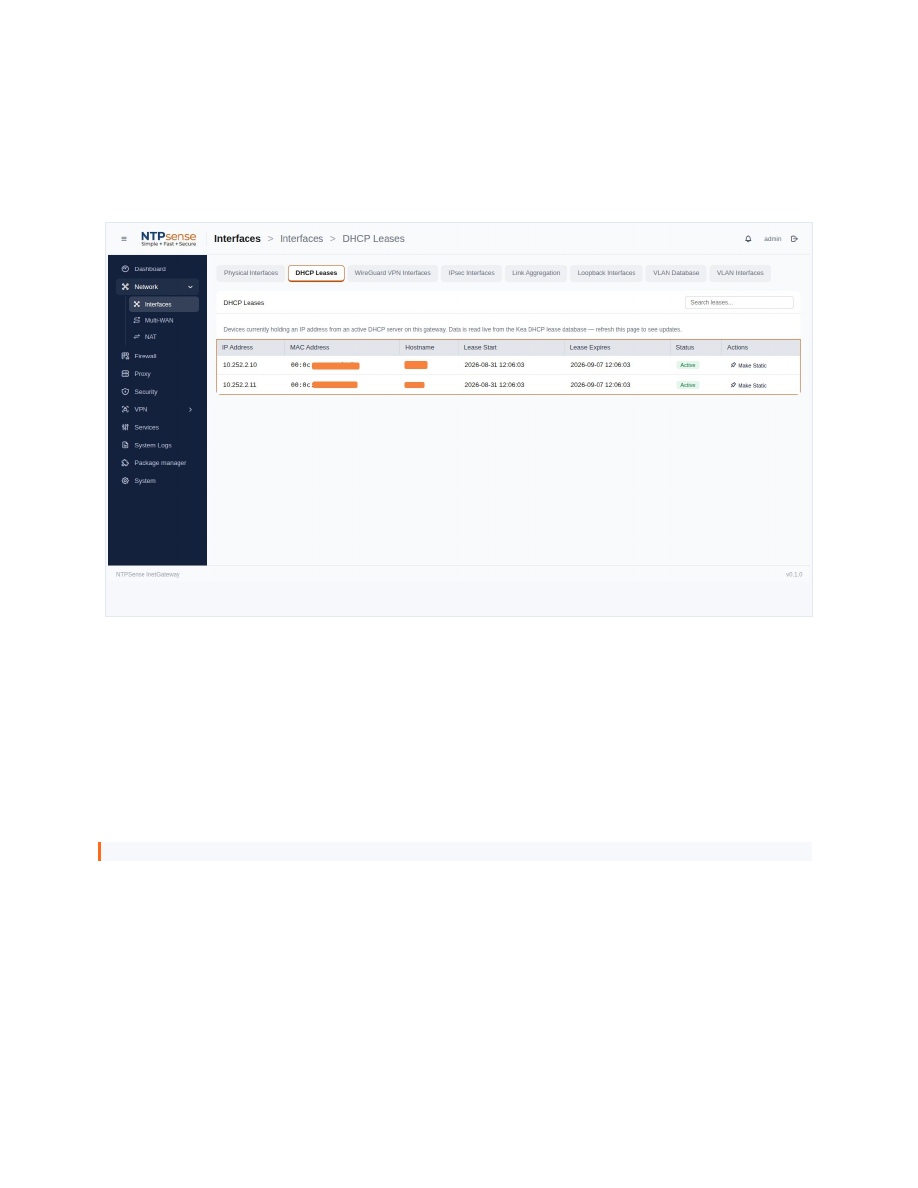 DHCP Leases table
5.4 Static Reservations
Convert any active lease into a permanent reservation directly from the Leases tab — no need to know the device's MAC address ahead of time.
- Find the device in the DHCP Leases table.
- Click Make Static next to its entry.
- The device's status changes to Static and it keeps this address indefinitely.
Note
A static reservation can be removed the same way, returning the address to the dynamic pool.