9.1 WireGuard
WireGuard is a modern, high-performance VPN protocol — simple to configure, fast, and well-suited to remote-access use (staff laptops, phones, individual devices connecting back to the office).
Installing WireGuard
- Go to Package Manager, find WireGuard, and click Install.
- Wait for the live console to confirm success, then close the popup.
- VPN > WireGuard now appears in the sidebar.
Setting Up the Server
Open VPN > WireGuard > Server.
- Click Enable WireGuard.
- Listen port — the UDP port clients will connect to (default
51820). Leave as default unless it conflicts with something else on your WAN. - VPN subnet — the private IP range assigned to connecting peers (e.g.
10.66.66.0/24). Each peer gets one address from this range. - Click Save. The server keypair is generated automatically the first time you enable it — you don't need to generate or paste any keys yourself.
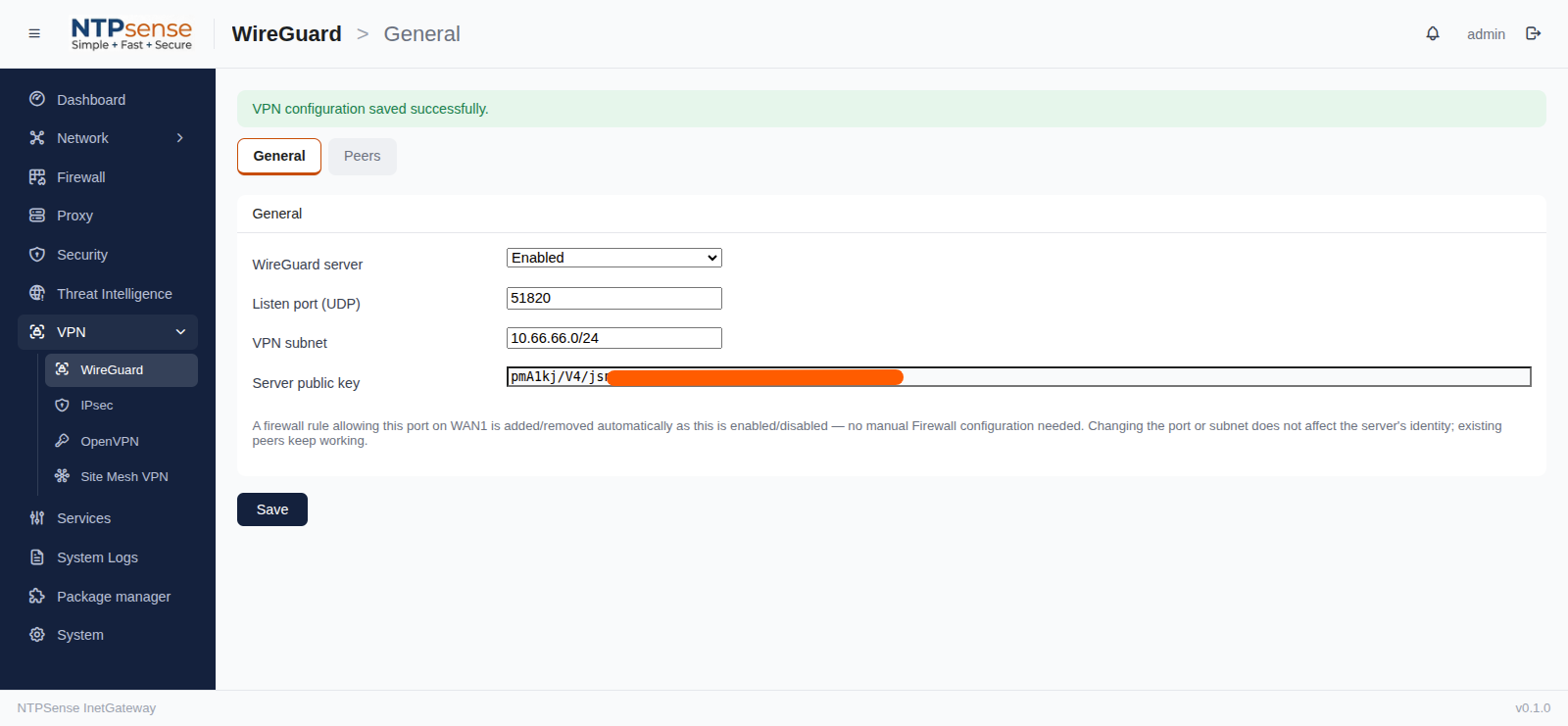 VPN > WireGuard > WireGuard Server > Enable > Save
Adding a Peer (a Device or Person)
Each person or device that needs to connect gets its own peer entry — this is what lets you revoke one person's access later without affecting anyone else.
- Go to VPN > WireGuard > Peers and click Add Peer.
- Give it a Name (e.g.
laptop-budi,phone-siti) — this is just a label for your own reference. - Click Generate. NTPSense creates the keypair for this peer automatically.
- Click Save.
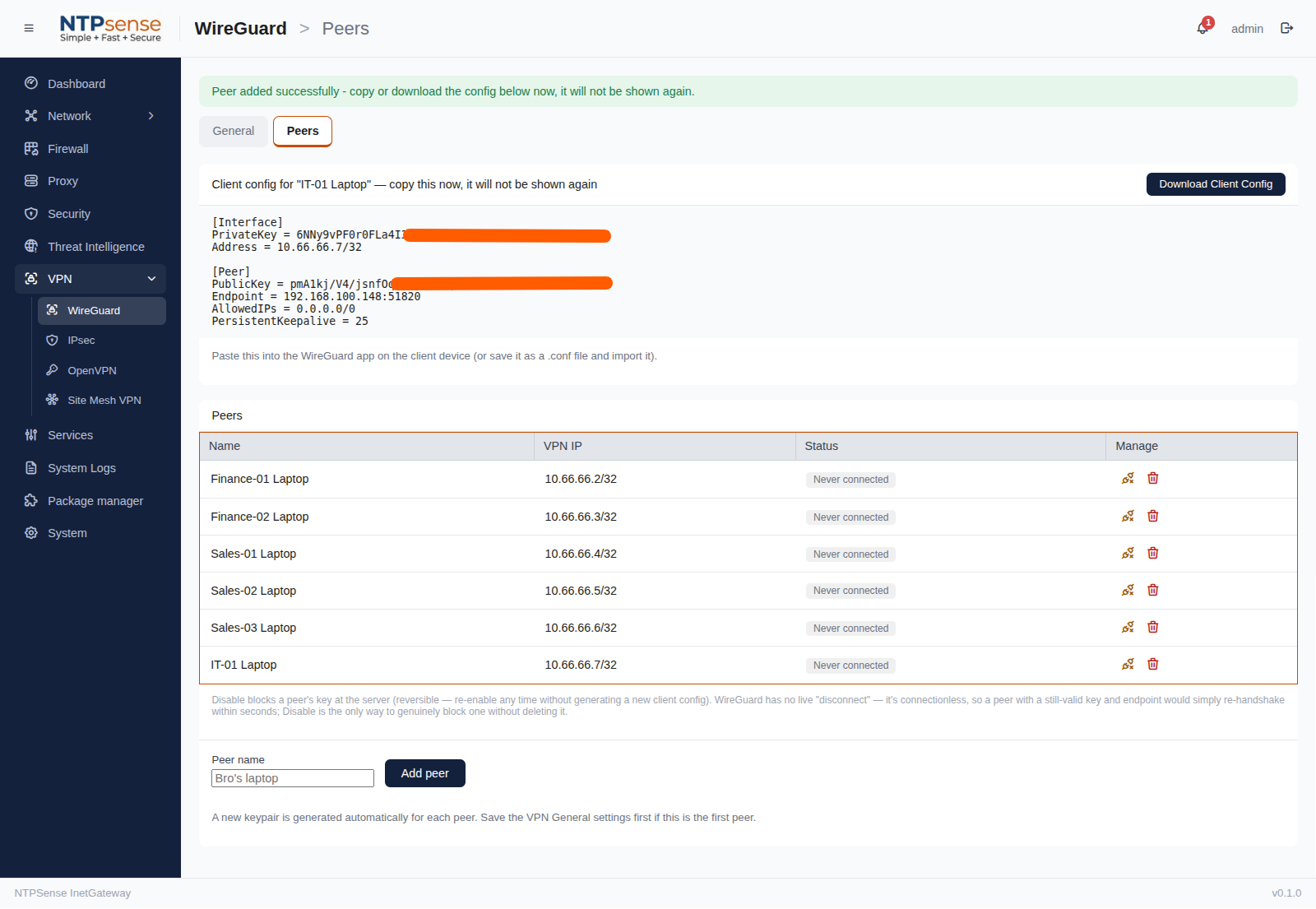 VPN Peers
Getting the Peer Connected
Once a peer exists, you need to get its configuration onto the actual device:
- Click Download Config next to the peer you just created. This downloads a
.conffile. - Install the WireGuard app on the device (available for Windows, macOS, Linux, iOS, and Android).
- Import the downloaded
.conffile into the app — most WireGuard apps let you do this via Import Tunnel from File, or by scanning a QR code (some NTPSense builds show a QR code directly next to Download Config for mobile devices — scan it directly with the WireGuard app instead of transferring a file). - Activate the tunnel in the app.
Checking Peer Status
Back on VPN > WireGuard > Peers, each peer shows a live status:
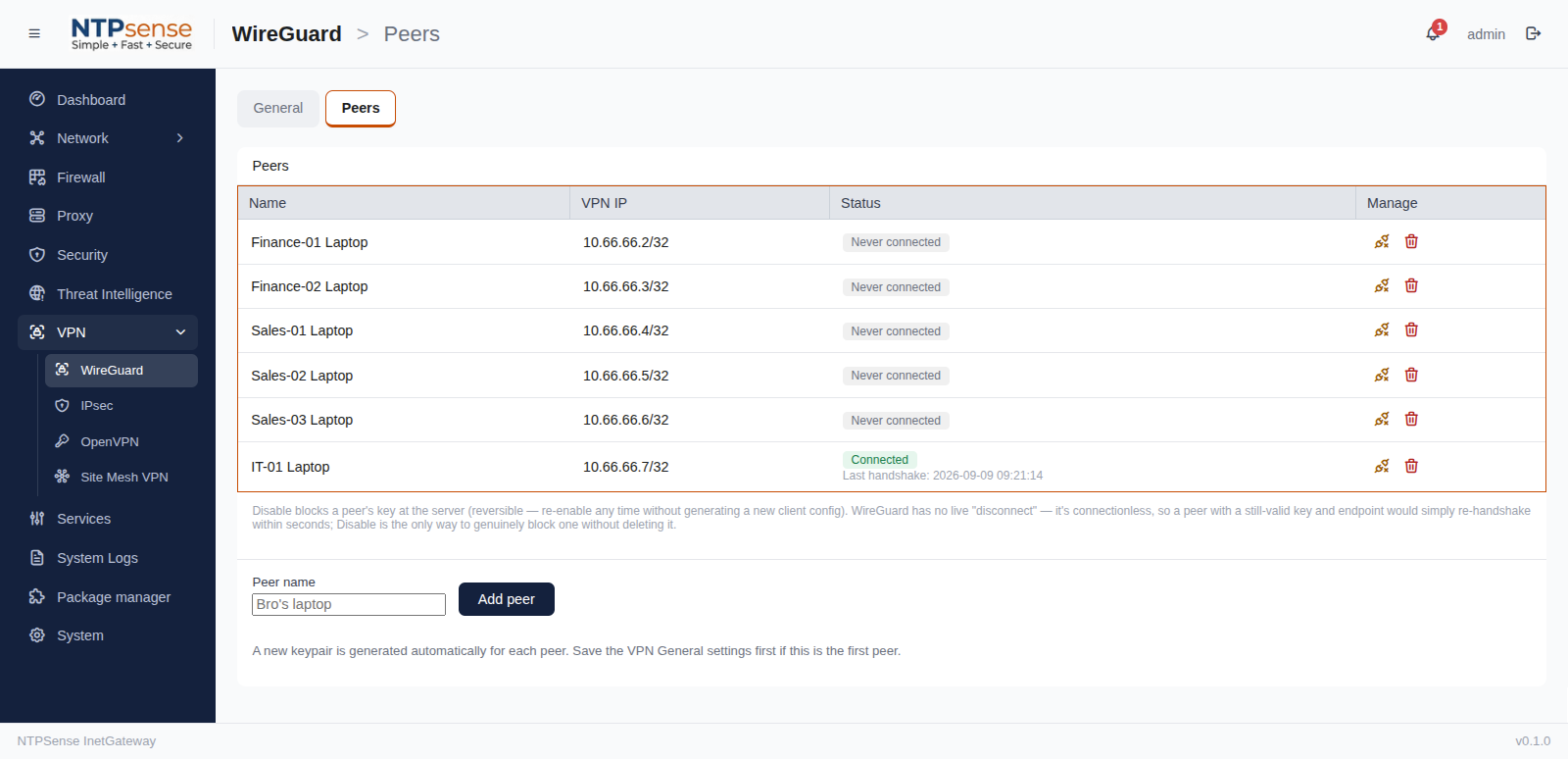 VPN Peers Status
| Status | Meaning |
|---|---|
| Connected | This peer has an active session with a recent handshake. |
| Disconnected | The peer exists and is configured correctly, but isn't currently connected. |
| Never connected | This peer's config has never been used to establish a session — check that it was imported correctly on the device. |
Revoking Access
To cut off a device or person, go to VPN > WireGuard > Peers and click Delete next to their entry. This takes effect immediately — no need to touch the device itself.
Note
WireGuard traffic is dropped by NTPSense's firewall unless a peer is genuinely configured and connected — you don't need to add manual firewall rules to allow WireGuard traffic through; this is handled automatically as peers are added and removed.