9.2 OpenVPN
OpenVPN is a certificate-based SSL VPN, well suited to networks that need to traverse restrictive firewalls — it can run over TCP port 443, making it indistinguishable from ordinary HTTPS traffic to anyone inspecting the connection from outside. It's a good choice for staff connecting from hotels, airports, or corporate guest networks that block most VPN protocols.
Installing OpenVPN
- Go to Package Manager, find OpenVPN, and click Install.
- Wait for the live console to confirm success.
- VPN > OpenVPN now appears in the sidebar.
Setting Up the Server
Open VPN > OpenVPN > Server.
One time create for PKI Initialize: One-time setup - generates a self-signed CA, server certificate, Diffie-Hellman parameters, and a tls-crypt key (modern replacement for the older tls-auth mode, obscures control-channel traffic from passive detection). This must run before any client or site can be created. Takes up to a minute (DH generation is genuinely slow) - only ever needed once. Not tied to hostname/IP - if your gateway's public IP or domain changes later, you only need to re-download client .ovpn files, not regenerate the CA itself.
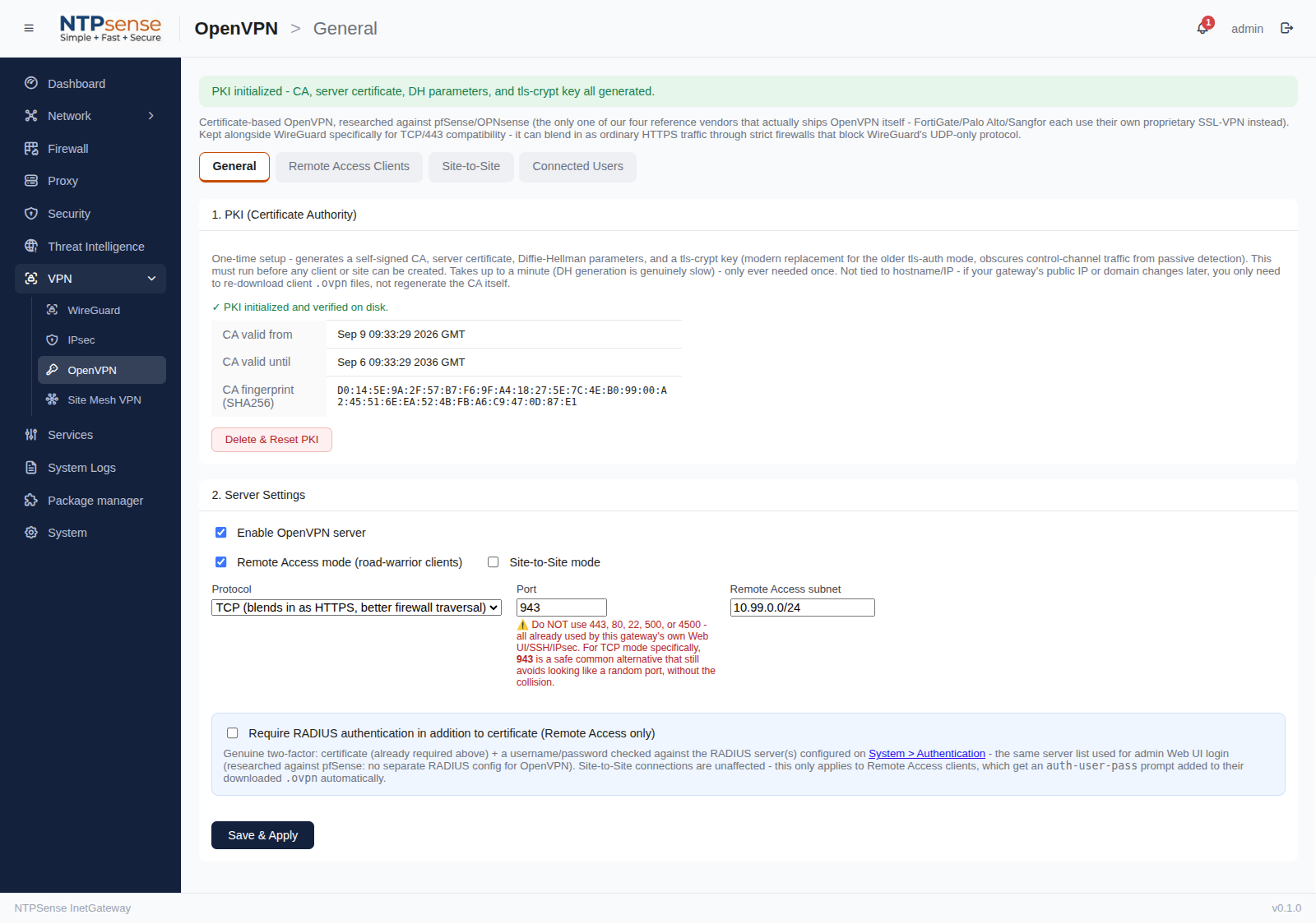 PKI Initialize
- Click Enable OpenVPN.
- Protocol — choose UDP (faster, default) or TCP (if you specifically need to blend in with HTTPS traffic — see note below).
- Port — default
1194for UDP. If using TCP specifically to disguise the VPN as web traffic, set this to943because443already used by webserver of NTPsense. - Enable Server & chosee Remote Access mode (road-warrior clients) or/and Site to Site mode checkbox.
- VPN subnet — the private IP range assigned to connecting clients (e.g.
10.99.0.0/24). - Click Save. NTPSense generates the server certificate authority (CA) and server certificate automatically.
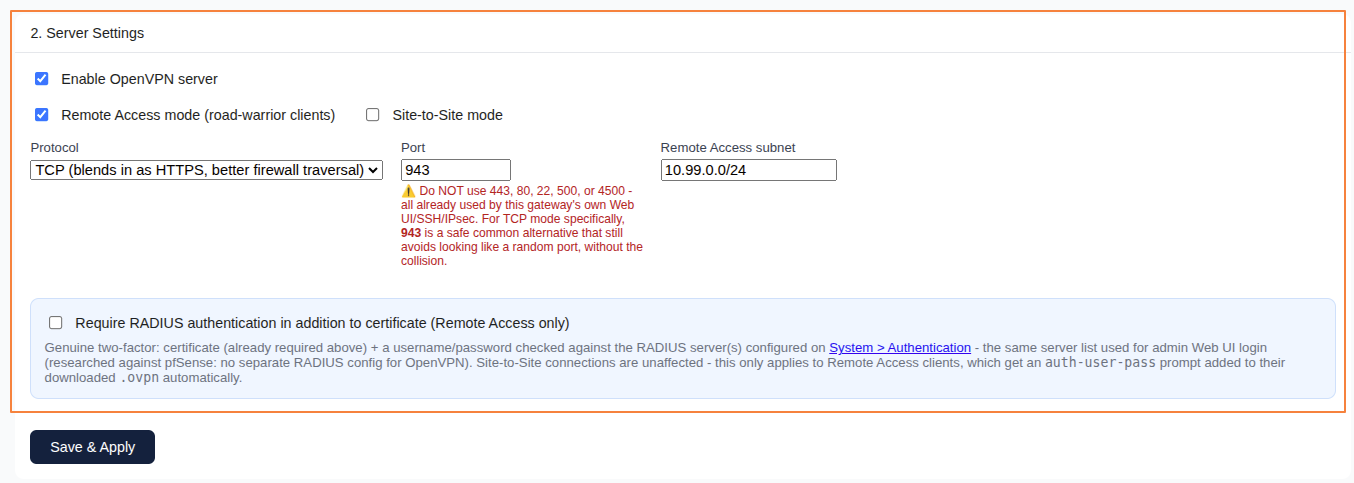 Server Setting
Using OpenVPN to bypass restrictive networks
Setting Protocol to TCP and Port to 443 makes OpenVPN traffic look like ordinary HTTPS browsing to most basic firewalls and captive portals — useful for staff connecting from locations that block VPN traffic specifically. This does not work against firewalls that do deep packet inspection (DPI) specifically looking for the OpenVPN handshake pattern, only against firewalls that filter by port/protocol alone.
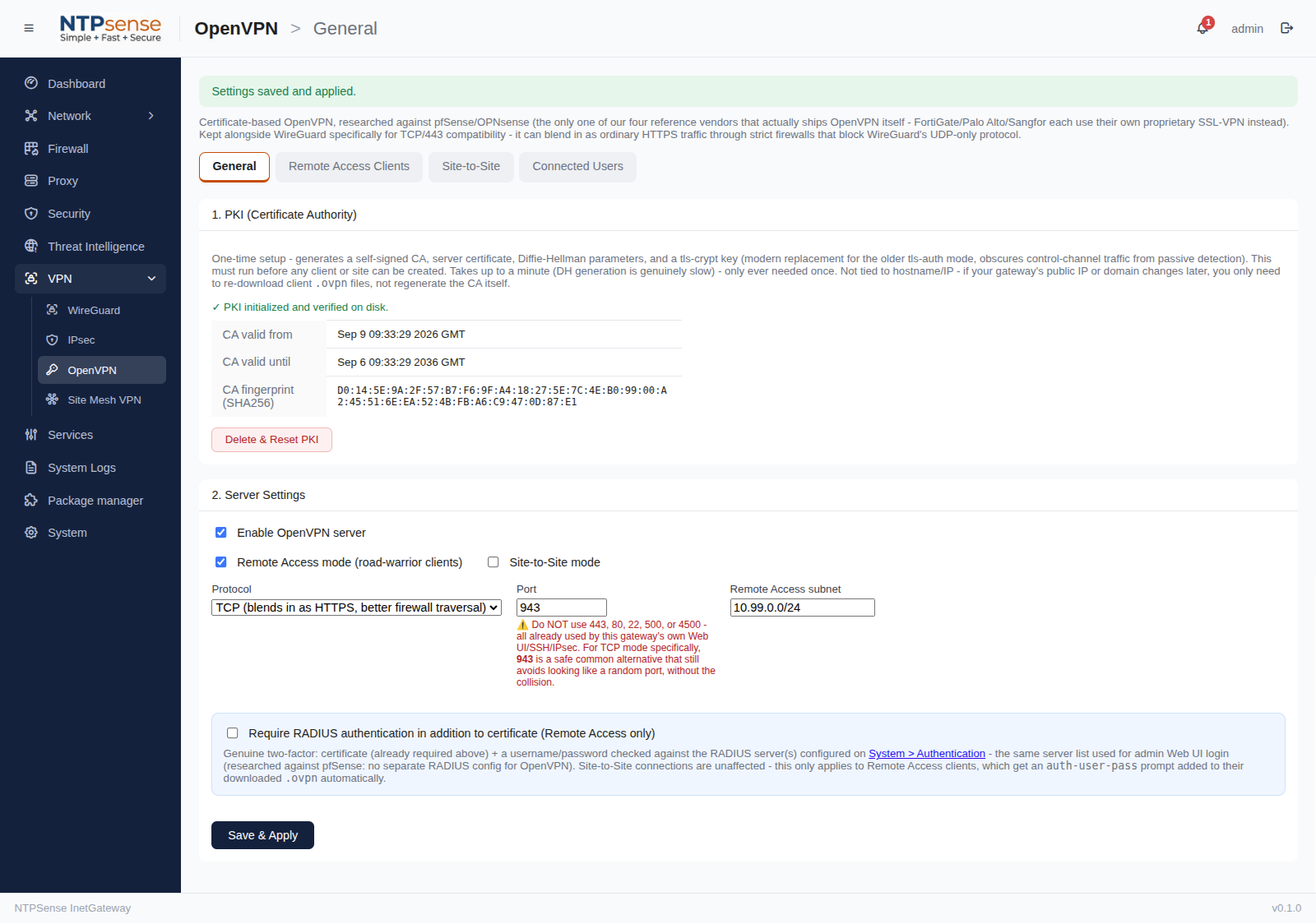 Save Server Setting
Adding a Client
Each person who needs to connect gets their own certificate — this is what lets you revoke one person's access without affecting anyone else, and (unlike a shared password) means a leaked laptop doesn't compromise everyone.
- Go to VPN > OpenVPN > Clients and click Add Client.
- Give it a Name (e.g.
laptop-budi). - Input in client table Domain Name / IP WAN. NTPSense issues a client certificate signed by the server's CA.
- Click Get .ovpn — this produces a single
.ovpnfile containing the client certificate, private key, and connection settings bundled together. - Download "Client-Name" .ovpn by Click the button then send it to client device.
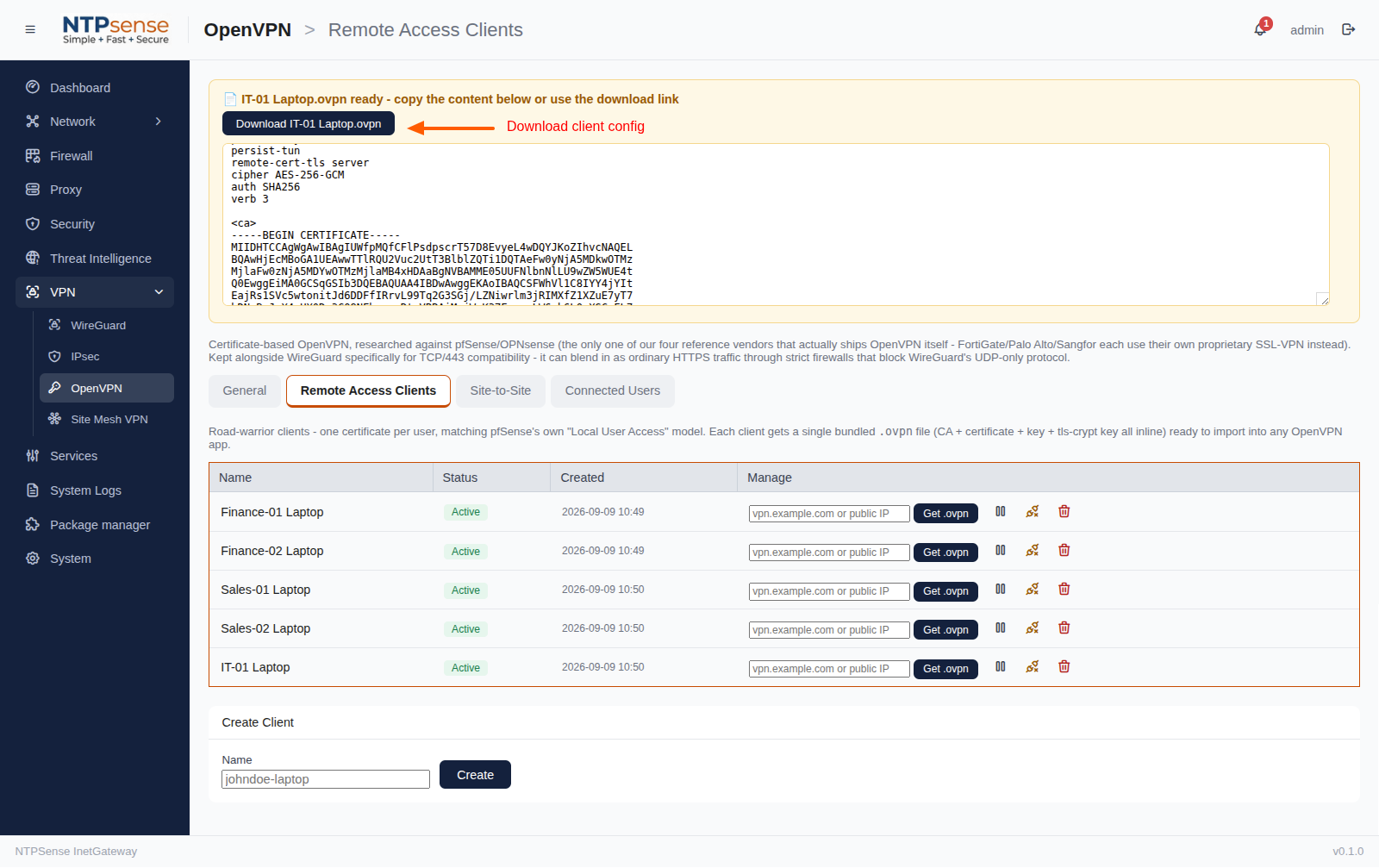 Adding a Client and Download Client config
Connecting from a Client Device
- Install an OpenVPN client app: OpenVPN Connect (Windows/macOS/iOS/Android), or the
openvpnpackage on Linux. - Import the downloaded
.ovpnfile into the app. - Connect.
Checking Client Status
VPN > OpenVPN > Clients shows each client's current connection state and, once connected, the IP address they were assigned from the VPN subnet.
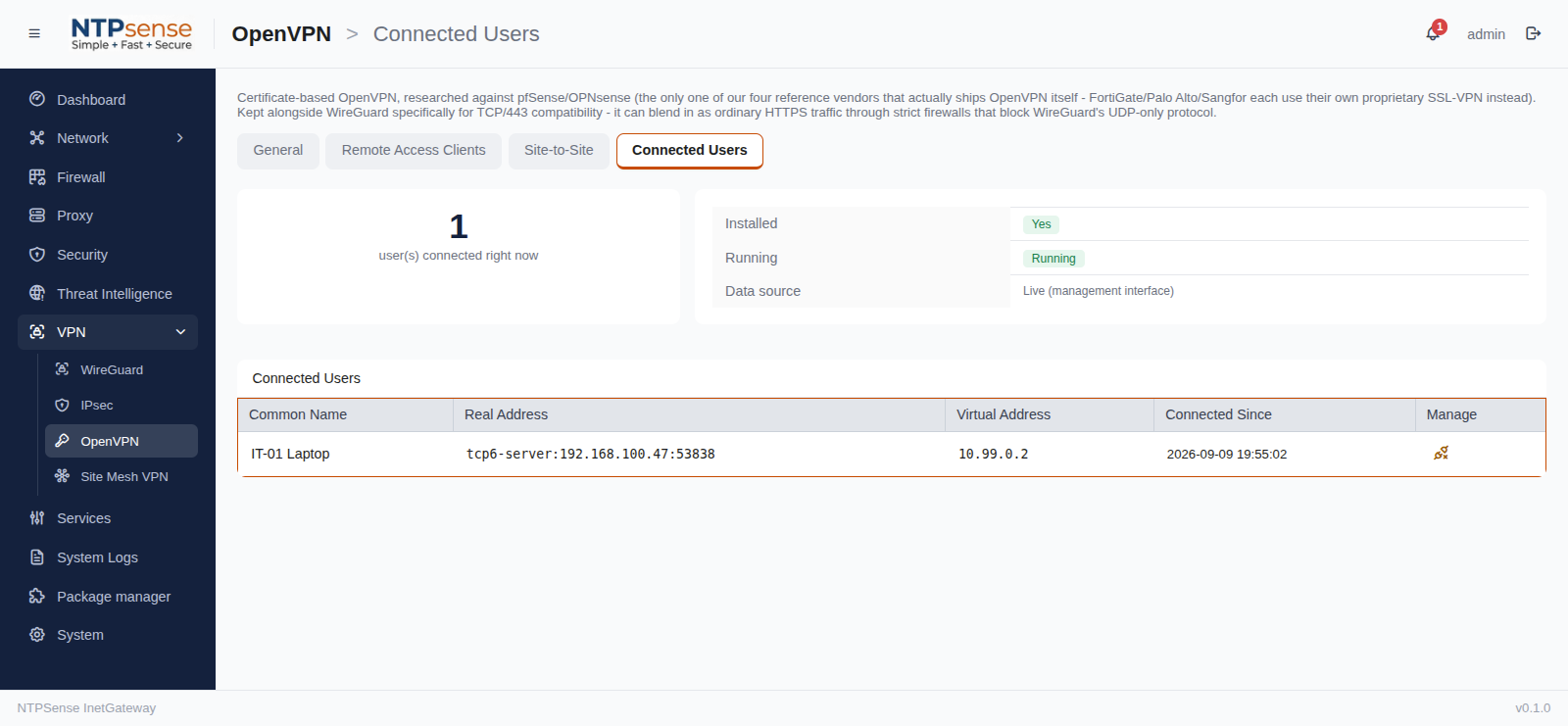 Client Status
Revoking a Client
Go to VPN > OpenVPN > Clients and click Revoke next to the client. This adds their certificate to the server's revocation list — even if someone still has the old .ovpn file, it will no longer be accepted.
Warning
Revoking is different from deleting. If you just delete a client entry without revoking, someone who kept a copy of the old .ovpn file could potentially still connect. Always use Revoke to cut off access, not just delete.